 NexCheck-筛号平台
You have a list of tens of thousands of customer phone numbers and need to know which ones are registered on WhatsApp. Dropping the Excel directly into a detection tool often returns a bunch of incomprehensible “invalid” results. Most of the time the problem isn’t the detection itself, but that the list wasn’t cleaned properly before entering detection.
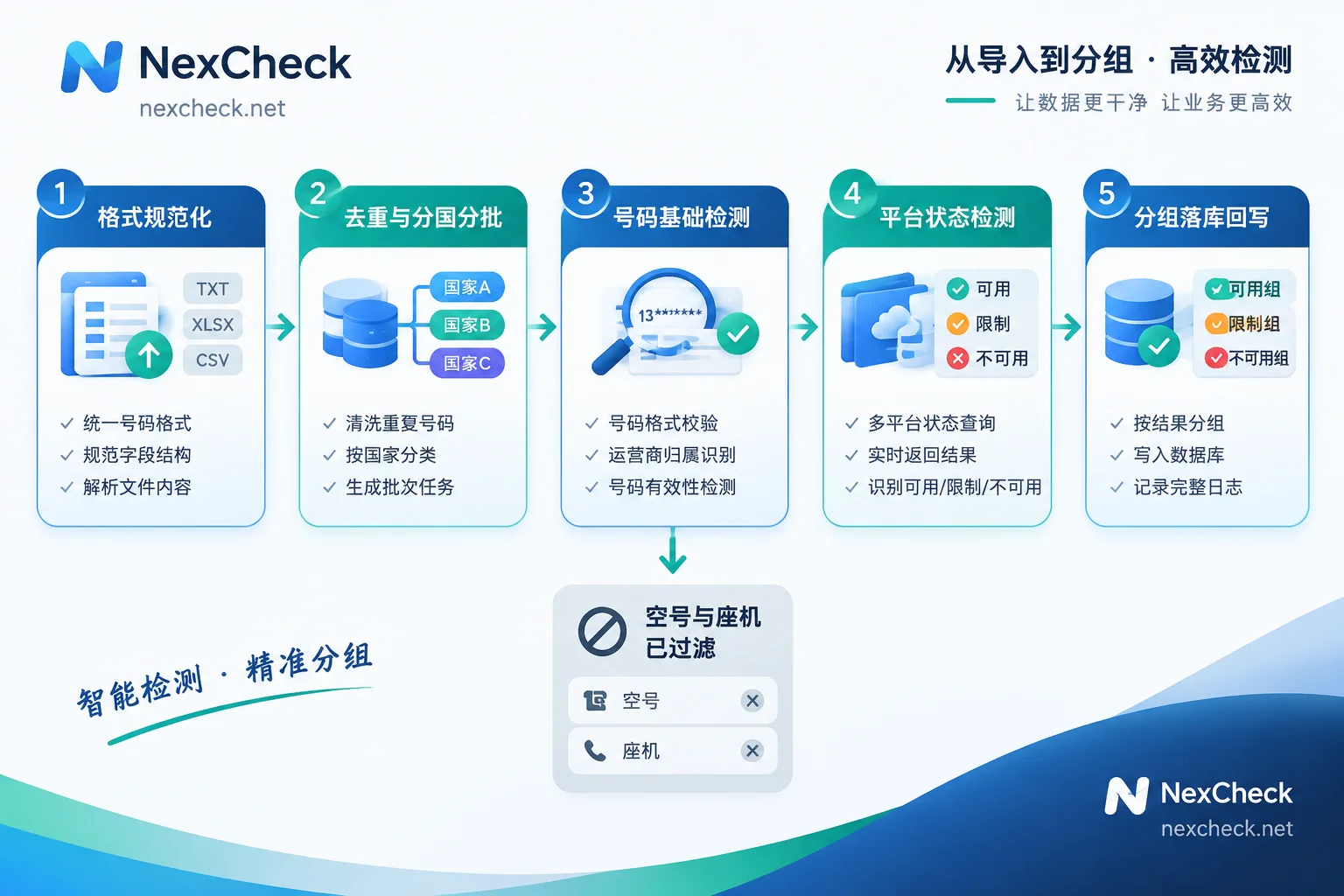
The usable sequence is these five steps:
- Clean numbers locally into E.164 international format;
- Deduplicate and split into batches by country code;
- Run basic number detection first to filter out invalid and non-mobile numbers;
- Then submit for WhatsApp platform status detection;
- Store results in multiple columns, then group by valid/invalid and write back to your business system.
Step 3 is often skipped, but it determines how much waste you’ll have when paying per number later. Below is what to do at each step and how to read the fields.
Step 1: Numbers must first become E.164
WhatsApp accounts are entirely identified by phone number; there is no separate username system. This means that if the number format is even slightly off, the detection system may treat it as a non-existent number and return “not registered”—when in fact the owner uses WhatsApp every day.
The E.164 rules are short: plus sign, country code, local number, with no spaces, parentheses, or dashes in between, and no more than 15 digits total. On real lists, the main types that need rewriting are:
- With separators:
+44 (0)20 7946 0958→+442079460958. Remove all parentheses, spaces, and hyphens. - With leading 0: In many countries, the local format adds a 0 before the area code or mobile number. This 0 is a domestic dialing prefix and must be removed after adding the country code. The UK number
07700 900123corresponds to the international format+447700900123, not+4407700900123. - Argentina: Between country code 54 and the area code, keep the
9, and remove the15from the local format.+54 11 15 1234 5678should be written as+5491112345678. - Mexico: After country code 52, include the
1, written as+521....
There’s another hidden problem: when exporting lists from Excel, the + sign is lost, long numbers are converted to scientific notation, and leading zeros are eaten by cell formatting. This kind of corruption isn’t obvious when eyeballing the list, but it will drag down the hit rate for the entire batch. Before exporting, set the number column to text format, or store numbers directly in txt, to save a lot of rework. For specific rewriting rules for several types of dirty numbers, see How to do E.164 normalization before overseas number filtering.
Step 2: Deduplicate and batch by country code
After cleaning, deduplicate first. The same customer may have left their number twice in different sheets, or the same number may appear with and without a plus sign. Only after normalization can you truly identify duplicates. Do deduplication after normalization; reversing the order will miss half the duplicates.
Then split into batches by country code. Running by country has three practical reasons:
- Different countries have different number lengths and numbering rules. When mixed together, it’s hard to tell whether a batch’s failure is a format issue or genuinely not registered;
- Some markets have high WhatsApp penetration, while in others users mainly use other platforms. Splitting by country lets you directly see which lists are worth further investment;
- After getting results, comparing hit rates by country—the abnormally low batch is usually due to unhandled format rules (e.g., countries with special formats like Argentina and Mexico).
If you’re unsure about a country’s number length, area code rules, and mainstream local communication platforms, you can first check Number formats and platform distribution by country, then decide which platform to filter this list for.
Step 3: Run basic number detection before platform detection
This step is about cost control and accuracy control.
WhatsApp is essentially designed for mobile numbers. Landlines generally can only register via the WhatsApp Business app receiving a voice verification code; regular personal accounts rarely fall on landline number ranges. VoIP virtual number ranges are often restricted by platform risk controls. So landlines, fax numbers, disconnected numbers, and obviously high-risk virtual numbers mixed into your list should be removed before submitting for platform detection.
Basic number detection typically provides: whether the number is invalid, device type (mobile vs. landline/VoIP), carrier, and whether it belongs to a high-risk range. This layer is purely about number attributes, without involving any social platform account information. After this, your list will slim down, and only the remainder is worth paying per number to check WhatsApp status.
In practice, store three types separately: definitely invalid numbers are archived and not reused; landline/VoIP numbers go into a separate group (these may still have value in B2B lists, just not for WhatsApp); mobile numbers proceed to the next step. How to filter WhatsApp invalid numbers covers separate handling for these three types.
Step 4: Submit for platform status detection—how to choose between two methods
Only at this step do you actually do WhatsApp number detection.
First, one thing not to do: write your own script to traverse and probe. WhatsApp’s client determines who in your contacts is registered by hashing numbers and comparing with the server. The official side has clear risk controls and account bans for abnormally high-frequency bulk traversal. Running tens of thousands of numbers through your own account or a simulated web client usually results in a banned account and incomplete data. List detection should be submitted through legitimate batch APIs—this is both a stability and account security issue.
On NexCheck’s WhatsApp platform page, you can see which detection items the platform currently supports and the per-number price. The detection item list and prices may change; refer to what’s shown on the platform page at the time, and don’t copy any field table hardcoded in an article.
There are two submission methods:
Console upload is suitable for one-off lists, temporary verification, and teams still evaluating. Upload your cleaned txt or csv; there’s no limit per batch, and after completion you can export grouped by valid and invalid. There are several common pitfalls in file preparation before upload (encoding, column headers, line breaks, single vs. multiple columns). You can refer to WhatsApp CSV filtering: 6 file preparation points before upload.
REST API is suitable for teams that already have a CRM and need to make detection a routine action. A typical approach is to submit a task, get a task ID, and have a Webhook push results when the task completes, avoiding long polling. If your list flows in continuously (e.g., new leads from forms), API + Webhook is the only way to have leads land in the database with status fields as soon as they come in. For specific task submission, state machine, and write-back design, see How to integrate WhatsApp filtering API; as for what volume should use polling and when you must use Webhook, tiering by task volume and latency tolerance gives the ranges.
One reminder: the list is your own customer data, and the detection provider only processes it within the task scope. However, compliance of data source and usage purpose is still the responsibility of the list holder. Cross-border lists especially require confirming this before uploading.
Step 5: How to read fields—which empty values cannot be treated as “no such person”
The most easily misused part of detection results is compressing them into a boolean “valid/invalid” stored in CRM. The truly useful information is in the detail fields.
Different platforms return different detection items—registration status, registration time, activity, whether banned, gender/age attributes, etc.—not every platform has them, and not every number is complete. For exactly what WhatsApp can provide, refer to the platform page’s detection item list. When reading fields, keep three things in mind:
Registration status is the hardest fact. It answers whether a WhatsApp account exists for this number. If this is false, all extended fields are meaningless.
Empty fields like avatar, status text, and public nickname do not mean the number is not registered. This content is controlled by the user’s own privacy settings and can be set to contacts-only or completely private. A user with maximum privacy settings will show as “registered + empty avatar + empty status.” If your filtering logic is “only active customers have avatars,” you’ll falsely kill a batch of real users.
Fields like registration time and activity are for tiering, not authenticity judgments. They’re suitable for prioritizing lists—e.g., putting recently active ones first for follow-up—but not as the sole criterion for “this number is valid.”
When storing, keep multiple columns: original number, normalized E.164, country code, basic detection result (invalid/mobile/landline/VoIP), platform registration status, available extended fields, and detection timestamp. The last column is important: number status changes, and a detection result from half a year ago cannot be treated as current fact. With a timestamp you know when to rerun. The specific design of this multi-column storage is expanded in Batch number verification: don’t just look at valid/invalid.
Where to check first when results are poor
If a batch’s registration rate is noticeably lower than others, troubleshoot in this order:
- Check whether the country code is consistent. If the whole batch is low, the most common cause is unhandled formatting rules for that country (leading 0, Argentina’s 9, Mexico’s 1). Manually verify ten numbers’ formats—cheaper than rerunning.
- Check list source and age. Numbers collected three years ago or purchased from unknown sources inherently have high invalid rates; this is a data problem, not a detection problem. First look at the invalid rate at the basic detection layer.
- Check whether you’re using extended fields as criteria. Mistakenly counting “empty avatar” or “empty status” as invalid will artificially lower the valid rate.
- Check number type. High landline proportion in B2B lists is normal; these numbers shouldn’t enter WhatsApp detection batches, and mixing them in will dilute the overall rate.
Once the whole process is working, the usual practice is to make steps 1 and 2 a fixed cleaning script, and hook steps 3 and 4 via API into the list ingestion process, so new numbers automatically land with status. This way list quality is no longer a last-minute fix before each campaign, but maintained in a usable state at all times.
To see the complete detection items and unit prices currently supported by WhatsApp, or to compare what other platforms can check in your target market, you can directly refer to What each platform can check before deciding where this list should go.




Comments(0)