 NexCheck-筛号平台
Suppose you have a contact list exported from CRM, about 80,000 entries, from multiple countries including Brazil, Indonesia, and the UK. The number formats are messy: some have country codes, some start with 0, and others contain spaces and parentheses. Your task is to find out which numbers have WhatsApp activated, what their account status is, and then write the results back to CRM.
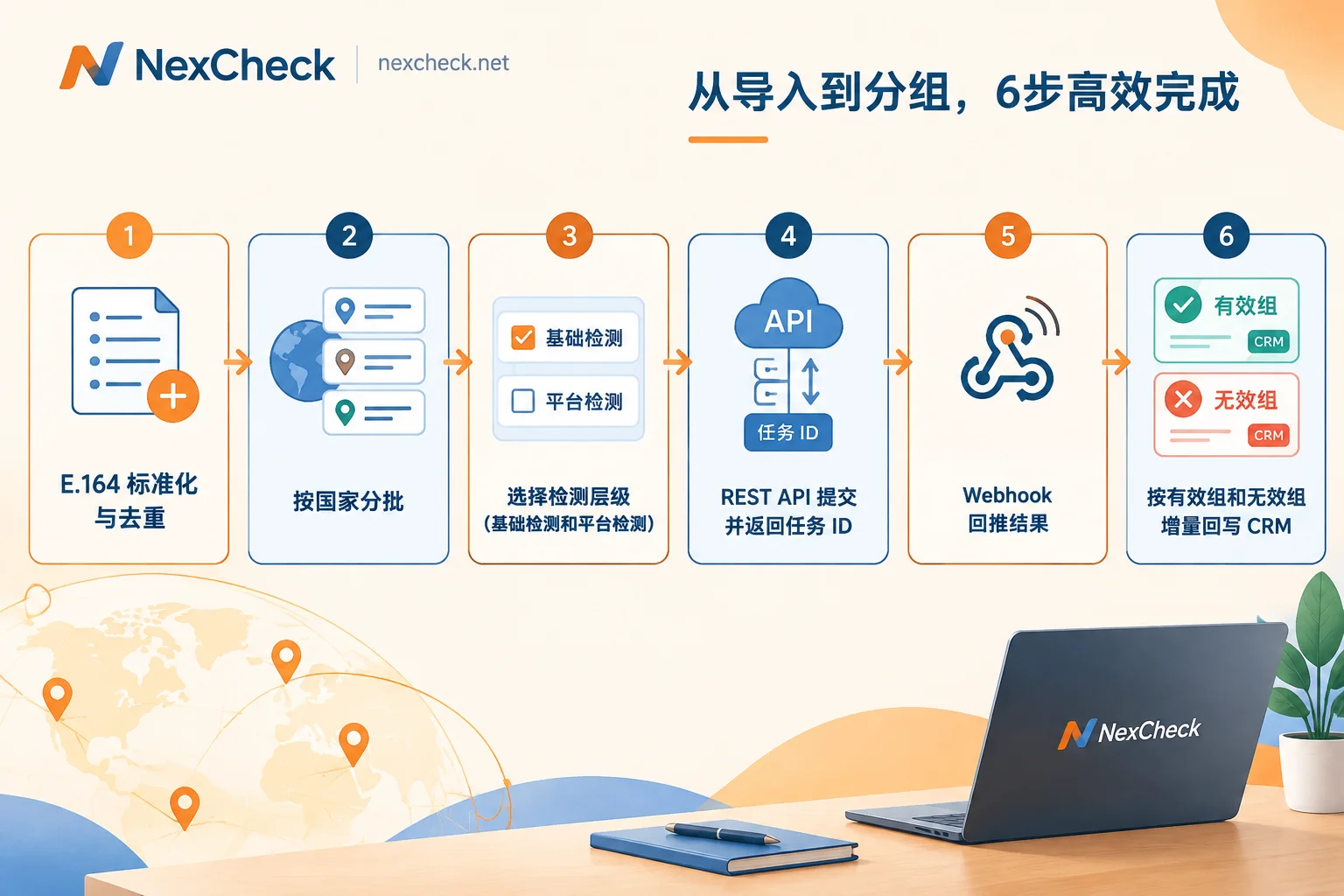
The conclusion: use asynchronous batch processing for such lists; do not make synchronous requests one by one. The processing order is as follows:
- Normalize numbers to E.164 format, then deduplicate;
- Split into batches by country;
- Decide which fields to check for each batch;
- Submit tasks via REST API and save task IDs;
- Receive results via Webhook;
- Incrementally write back to CRM grouped by valid and invalid.
Below is a step-by-step explanation of what to pay attention to at each stage.
A premise first: why not use Meta's official API directly
Many developers first look for an endpoint in Meta's WhatsApp Business API to "batch check if numbers are registered," but they won't find one. The official Cloud API is designed for business message sending and receiving. Its number-related endpoints manage phone numbers under your own business account; it does not provide batch activation status screening for existing lists.
Therefore, activation status detection for a list is usually an independent data cleaning step within the CRM data pipeline. It is separate from how you later use these contacts; this article only covers the former.
Step 1: E.164 normalization, then deduplication
Batch verification APIs typically require numbers to conform to the ITU-T E.164 format: country code + national number, without local leading zeros, spaces, hyphens, or parentheses, and a total length of no more than 15 digits.
Some common conversion examples:
- UK
07700 900123converts to+447700900123, removing the local leading 0 and adding 44; - Indonesia
0812-3456-7890converts to+6281234567890; - Numbers already in
+55 (11) 91234-5678only need spaces, parentheses, and hyphens removed.
When cleaning, pay attention to the following:
- Keep the original value in a separate column; do not overwrite it. Store the normalized number in an
e164field so you can trace back if issues arise. - Normalize first, then deduplicate.
0812...and+62 812...are two entries in the raw data but become the same number after normalization. If you deduplicate first, such duplicates will be missed. Per-item pricing services will charge again for duplicate numbers. - Do not guess numbers missing a country code. If your CRM has a country or region field, you can use it to add the country code. Put numbers that cannot be completed into a separate group and submit them after manual confirmation. Mixing them into batches only increases parsing failures.
- Countries like Argentina and Mexico have special encoding rules for mobile numbers; you can refer to WhatsApp E.164 format conversion rules for conversion logic.
Step 2: Split batches by country
Even if the API allows unlimited numbers per batch, it is advisable to submit multinational lists separately by country for three reasons:
- Number length and prefix rules differ by country, so separate processing makes it easier to spot cleaning rule errors for a specific country;
- Results are usually analyzed by market; after batching by country, write-back and statistics are more straightforward;
- If a batch has an abnormal failure rate, you can directly locate the specific country without troubleshooting among 80,000 entries.
If you are still unsure about a country's number format or which platform is mainly used in that market, you can first check the NexCheck regional solutions page before deciding whether to run WhatsApp detection for that country's batch.
Step 3: Decide which layer to check
Detection results generally fall into two layers:
- Number base layer: whether the number itself is valid, e.g., invalid number, device type (mobile, landline, VoIP, etc.), high-risk number.
- Platform attribute layer: whether the number has WhatsApp activated, whether the account is banned, and obtainable attributes such as registration time, activity, gender, and age.
On NexCheck, these two layers correspond to number base detection and platform detection. Detection items are priced per item, and different platforms offer different fields. For what WhatsApp currently supports and the unit price for each item, please refer to the price list on the WhatsApp platform page.
Which fields to choose depends on how the list will be used next:
- If you only need to determine whether a number can be kept as a WhatsApp contact, checking activation status is enough;
- To segment contacts, e.g., distinguish long-term inactive numbers, add fields like activity;
- If the list source is mixed and may contain many invalid numbers, you can run base detection first to remove clearly invalid numbers, then run platform detection on the remaining numbers to reduce costs.
The difference between the two layers and how to merge results can be found in What is the difference between WhatsApp number filtering and number verification.
Step 4: Submit tasks asynchronously
Tens of thousands to millions of numbers are not suitable for a single synchronous HTTP request waiting for results, as connections can easily time out. A common approach is asynchronous batch processing:
- The client submits a batch via REST API, and the server returns a task ID;
- Locally record the mapping between task ID and batch number, country, submission time, and number count;
- After detection completes, the server pushes structured results to your receiving address via Webhook.
There are several general practices worth following on the Webhook receiving end:
- Return success first, then process data. Upon receiving a push, first write the raw payload to a queue or database, then immediately return 2xx. Put database insertion, write-back, and other logic into asynchronous processing.
- Use "task ID + number" for idempotency. When the same result is pushed twice, it should not produce two updates in CRM.
- Perform security validation. If the documentation provides a signature or key verification method, the receiving end should validate it and not accept pushes from unknown sources.
- Reconciliation. Periodically check tasks that have been submitted but have not received a callback, and follow up according to the documentation. Do not assume they are complete.
For specific request parameters, callback fields, and authentication methods, please refer to NexCheck's documentation, which can be viewed after registering from the "Filtering Tools" in the official website navigation. For the complete integration process, see How to integrate WhatsApp number filtering API; for error troubleshooting, see How to troubleshoot WhatsApp number filtering failures.
Also, not all scenarios require API integration. For a one-time list cleaning, uploading a txt or csv on the console and exporting grouped by valid and invalid is usually more convenient. Only when leads continuously enter CRM and require regular re-checks, or when detection results need to be automatically written back to the system, is API integration worth it.
Step 5: Note these boundaries when interpreting results
After results are returned, before splitting into valid and invalid groups, confirm a few easily misinterpreted points:
- "Not activated" and "banned" are two different statuses. The former means the number has not registered WhatsApp; the latter means the account exists but is restricted by the platform. They should be represented by different values in CRM, not merged into one "invalid".
- A missing field does not mean "no". Attributes like registration time and activity may be unavailable due to platform privacy settings or visibility adjustments. Such cases should be recorded as "unknown", not "inactive".
- Carrier field and WhatsApp status may not match. In countries that support number portability, the carrier attribution at the base layer and the number's current actual usage may have a time lag. When the two fields conflict, use them according to their respective meanings; do not overwrite each other.
For the specific meaning of each field, you can refer to How to read WhatsApp number filtering results.
Step 6: Write back to CRM
The most common problem during write-back is: after deduplication, one number may correspond to multiple CRM records. For example, the same contact was entered once by the marketing department and once by the sales department. Therefore, during the first cleaning step, save a mapping of "e164 → list of CRM record IDs", and distribute results to each corresponding record during write-back.
It is recommended to add several independent fields in CRM rather than stuffing detection results into notes:
| Field | Purpose |
|---|---|
| e164 | Normalized number, used as matching key |
| wa_status | Activated / Not activated / Banned / Unknown |
| number_type | Number type from base detection, e.g., mobile, landline, VoIP |
| checked_at | Detection time, used to determine if re-check is needed |
| task_id | Source task ID, for traceability |
Follow these principles during write-back:
- Incremental updates: only update fields with results this time; do not overwrite old values with nulls;
- Archive and isolate invalid numbers, do not delete directly: keep records and detection time for future re-checks or verification;
- Preserve detection time: number status changes; records with longer time since last detection can be re-run before next use.
Compliance boundaries
Batch verification should only be used for lists you legally hold, such as your own existing customers or contact details voluntarily provided by customers. The legality of the list's source and use is the responsibility of the list holder. The detection service only processes this data within the scope of the task. Do not attempt to bypass platform privacy settings to obtain information through self-built scripts.
Next steps
If your list has been cleaned and batched according to the steps above, the next step is to check the WhatsApp platform page to confirm the currently available detection items and unit prices, then decide which layer to check for each batch. Once decided, register at the official website's "Filtering Tools" to access the API integration instructions in the documentation; if you do not plan to integrate the API, you can also directly upload files on the console to complete the first batch of detection.


Comments(0)