 NexCheck-筛号平台
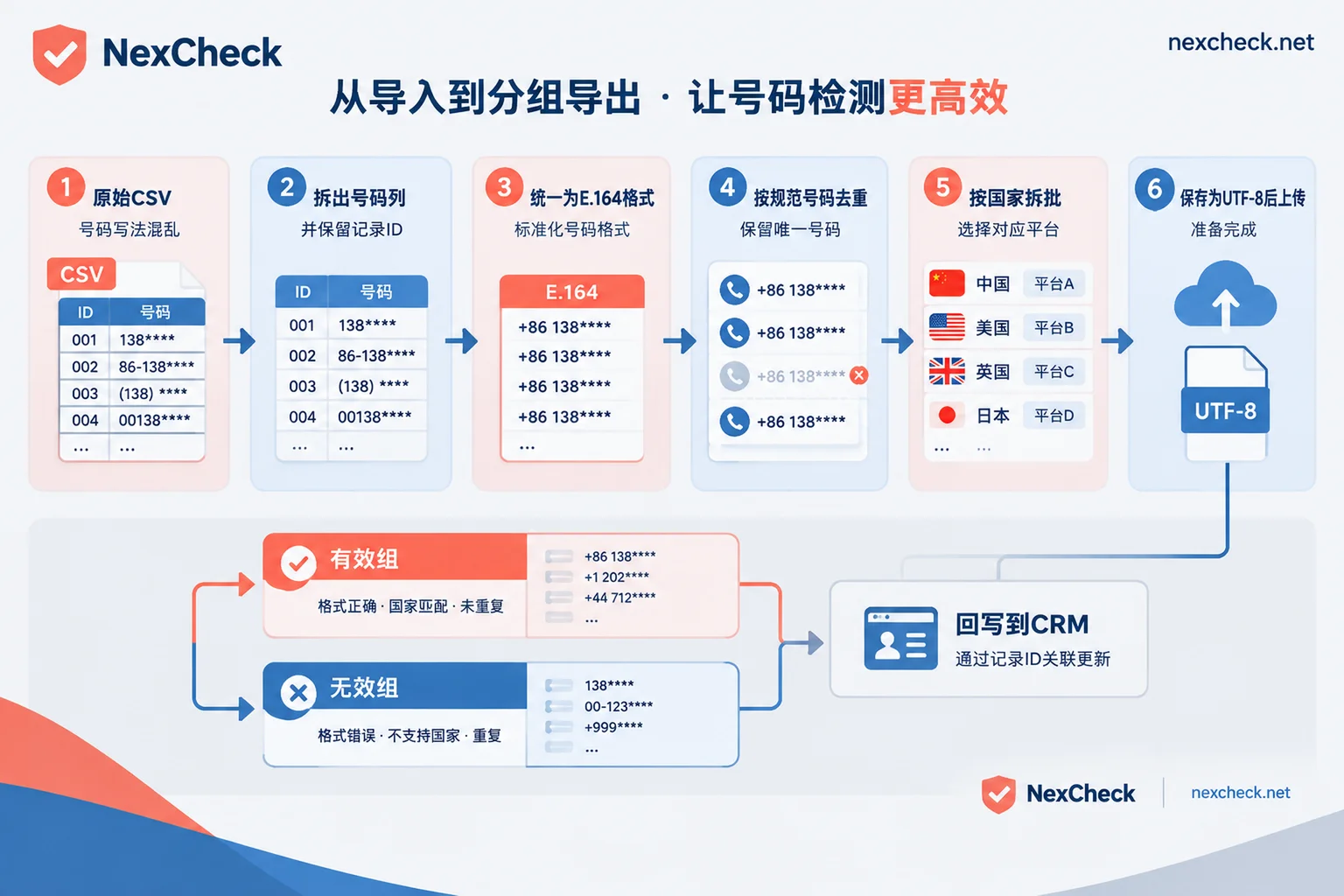
You have a CSV and want to know which numbers have Telegram accounts and which are still active. You can process it in the following order:
- Extract only the number column and keep a record ID for each row.
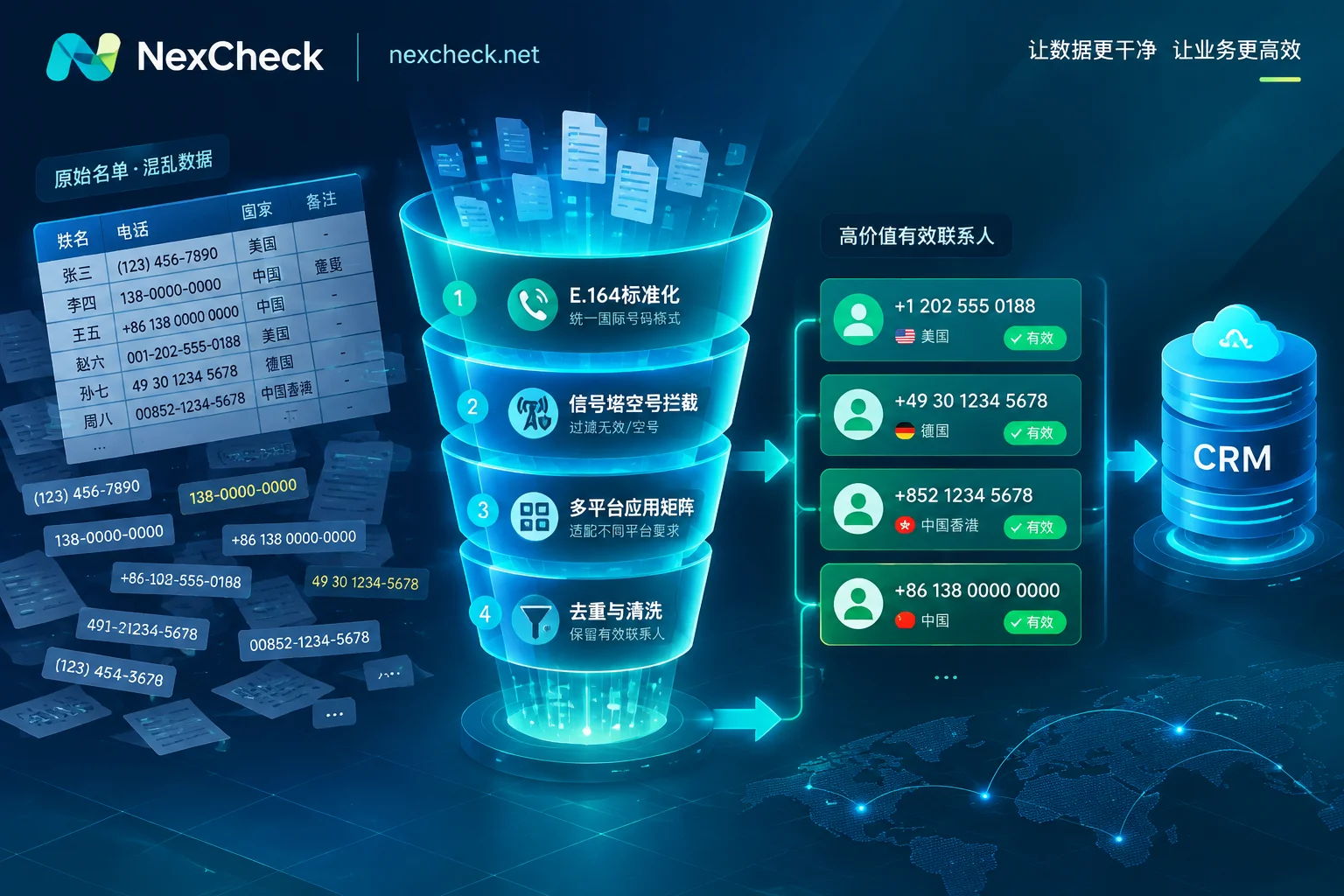
- Unify numbers into E.164 format with country code.
- Deduplicate using the normalized numbers.
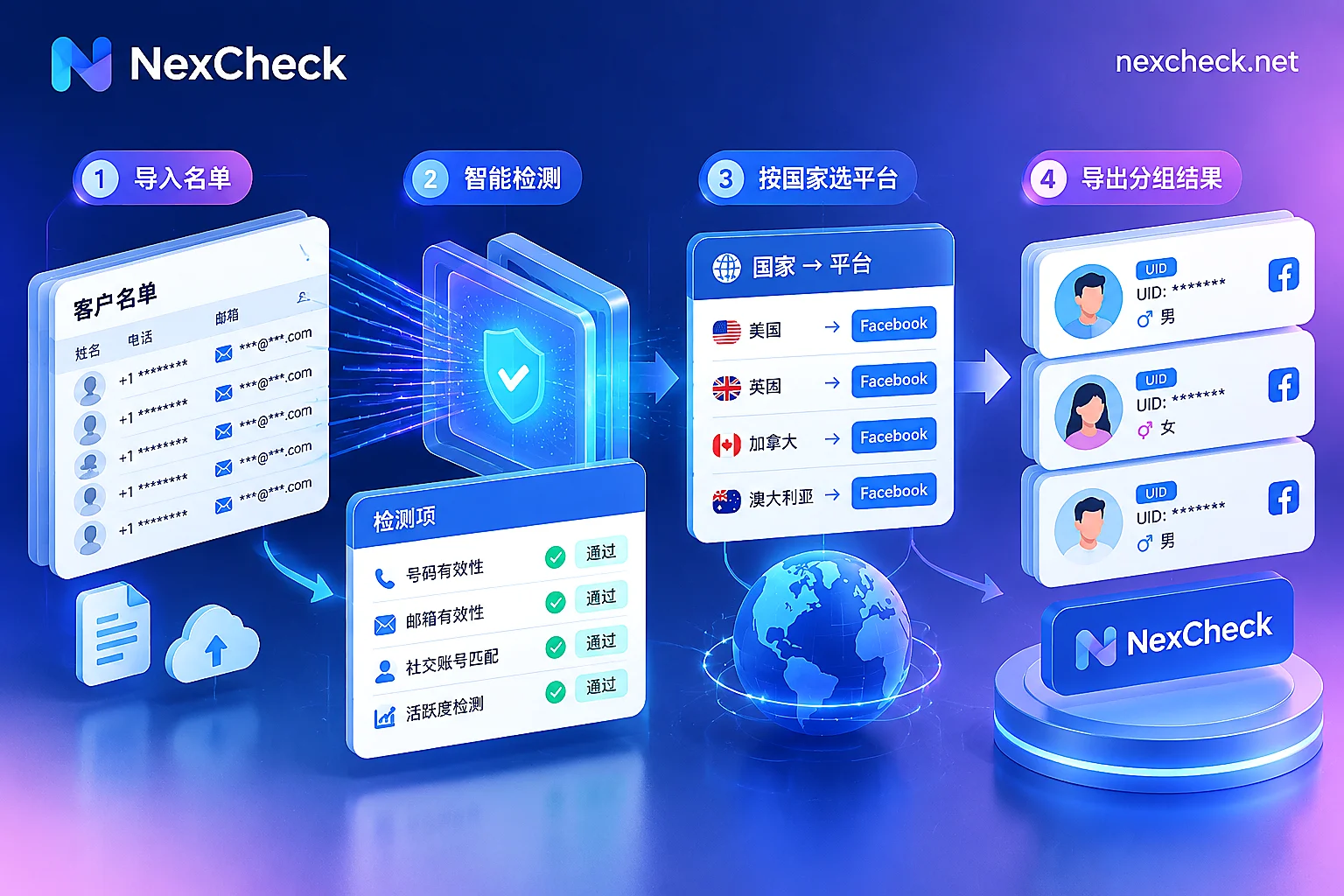
- Split multi-country lists into batches by country.
- Save as UTF-8 encoded CSV, then upload for checking.
- Process results separately by valid and invalid groups, then write back to CRM using record IDs.
The order matters. If you deduplicate before unifying formats, different representations of the same number will be treated as two records. If a number lacks a country code, it will likely be marked invalid during checking.
Let's walk through a common list.
First, look at the problems in the list
Suppose this CSV was merged from an exhibition registration form and a website form, with columns for name, company, country, and phone. The phone column might look like this:
| Original format | Problem | After normalization |
|---|---|---|
| 138 0013 8000 | Has spaces, no country code | +8613800138000 |
| (202) 555-0123 | Has parentheses and hyphens, no country code | +12025550123 |
| 07911 123456 | Has UK local leading 0 | +447911123456 |
| +86-138-0013-8000 | Has hyphens, duplicate of first row | Merge with first row |
These formats are common in multi-country lists. Fortunately, each case has a fixed solution.
Step 1: Extract the number column and keep record IDs
For the file uploaded to the checking service, it's best to include only numbers. Fields like name and company are useless for checking, and omitting them reduces data exposure.
Save a local mapping table with three columns: CRM record ID, original number, and normalized number. This table will be essential for writing back results later. If the CRM export doesn't have IDs, use row numbers as temporary IDs.
Step 2: Unify to E.164 format
E.164 is the international number format defined by the ITU. It consists of a country code plus the national number, without spaces, parentheses, or hyphens, and a total length of no more than 15 digits. When cleaning:
- Remove spaces, hyphens, parentheses, and dots.
- Remove leading 0s used for local dialing. For example, UK's 07911 becomes 447911.
- Add the country code. You can write it as
+12025550123or just digits12025550123, but be consistent across the batch.
For numbers without a country code, do not guess the country based on number length. Instead, use the country column, form source site, or exhibition location. If you truly cannot determine it, put them in a separate 'to be confirmed' table and do not mix them with normal numbers for upload.
Step 3: Deduplicate using normalized numbers
After unifying formats, deduplicate by the normalized number column. In the example above, the first and fourth rows become identical after normalization, so keep only one.
Do not delete CRM records directly during deduplication. The same number might correspond to two contacts, such as a company's main line. In the mapping table, you can have both IDs point to the same normalized number. The check runs only once, and both records can receive the results when writing back.
Step 4: Split multi-country lists into batches by country
Splitting into batches has two benefits. First, after checking, you can compare validity rates by country. If one country has a significantly higher invalid ratio, it often indicates that the area codes for that batch were added incorrectly. Second, different markets have different number rules, so handling them separately makes troubleshooting easier.
If you're unsure about the number length and format for a country, check the NexCheck regional solutions page, which lists number formats and local mainstream platforms by country.
Step 5: Save as UTF-8 and beware of Excel pitfalls
Save the file uniformly as UTF-8 encoding. When the list contains Chinese, Russian, Arabic, etc., this reduces garbled text when opened on another computer or system.
When using Excel to handle the number column, watch out for two things:
- Long numbers may be displayed in scientific notation, losing trailing digits.
- Leading plus signs may be consumed as formula symbols.
Before processing, set the number column to text format. After exporting, open it in a text editor and spot-check a few rows.
Upload for checking: clean before submitting to save costs
You can upload the cleaned file directly in the NexCheck console. It supports csv or txt, with no limit per batch. Checking is priced per record, so deduplicating first and removing obviously malformed numbers saves money.
For which items Telegram can check and their prices, refer to the price list on the Telegram number checking platform page. Checking items and unit prices may change, so check the current list before submitting.
The list must be contact data you legally collected, and the purpose must be compliant. Checking only processes this data within the task scope.
What the result fields mean
After checking, results are exported in two groups: valid and invalid. Common information includes the following categories; the actual returned fields are subject to the platform page description and result file:
- Is registered: Whether this number can be matched to a Telegram account.
- Activity status: Recent usage of the account, which can distinguish active numbers from long-idle ones.
- Banned or deactivated: Whether the account still exists and can be used normally.
- Basic number check: Empty number, device type, high-risk number, etc. This layer does not rely on Telegram; it judges the number itself.
Don't treat the invalid group as one category
The invalid group contains numbers with different reasons, so it's best to handle them separately:
- Format issues: Incorrect area code, wrong number of digits. Go back to the mapping table, correct, and re-check.
- Empty or high-risk numbers: The number itself has problems. Mark them in CRM and stop using them as valid contact methods.
- No matching Telegram account: This category is most easily misinterpreted. Telegram discovers contacts via phone numbers, but users can set 'Who can find me by my phone number' to 'My Contacts' or 'Nobody' in privacy settings. Users with such settings cannot be found externally by number even if they have registered.
Therefore, the third category should be labeled 'TG not matched', not 'not registered'. The number itself may be perfectly normal, just not findable on Telegram. For the matching principle and privacy limitations, see How to check if a Telegram number is registered.
Write back to CRM: link by record ID, keep the check date
Link the result file with the local mapping table by normalized number, then write back to CRM via record ID. It's recommended to add these fields:
- TG registration status
- TG activity status
- Number basic status
- Check date
- Batch number
Two things to note when writing back:
- Do not overwrite the original number field. Store the normalized number in a separate column for future reference.
- Always record the check date. Account status changes, and results from six months ago may no longer be accurate.
If your list keeps coming in, such as new leads daily from a form, manual upload is not suitable. You can switch to submitting tasks via REST API and receiving results via Webhook, writing directly into CRM. For integration, see How to integrate Telegram number filtering API.
Checklist before submission
- All numbers have country codes, no spaces or symbols.
- Deduplicated by normalized number.
- Local mapping table has record IDs.
- File is UTF-8 encoded, numbers not corrupted by Excel.
- Confirmed the checking items to select on the platform page.
If all these are fine, go to the Telegram platform page to select checking items, then upload the first batch in the console.


Comments(0)